How to add text to a photo on iPhone
You don’t need an app. In the iPhone Photos app, open the photo, tap Edit, tap the More button (⋯) and choose Markup. Then tap the plus button, choose Add Text, type your words, style them with the Aa button, drag them into place and tap Done twice.
. Screenshots are our own.
Add text with Markup, step by step
Markup is built into the Photos app, so this works on any iPhone running iOS 26 or iOS 27. It takes about a minute.
01
Open the photo and tap Edit
In the Photos app, tap the photo to open it full screen, then tap Edit, the button with three sliders at the bottom of the screen.
02
Tap More (⋯), then Markup
Markup isn’t one of the editor’s main tabs. Tap the More button, the three dots near the top right, and choose Markup from the menu.

03
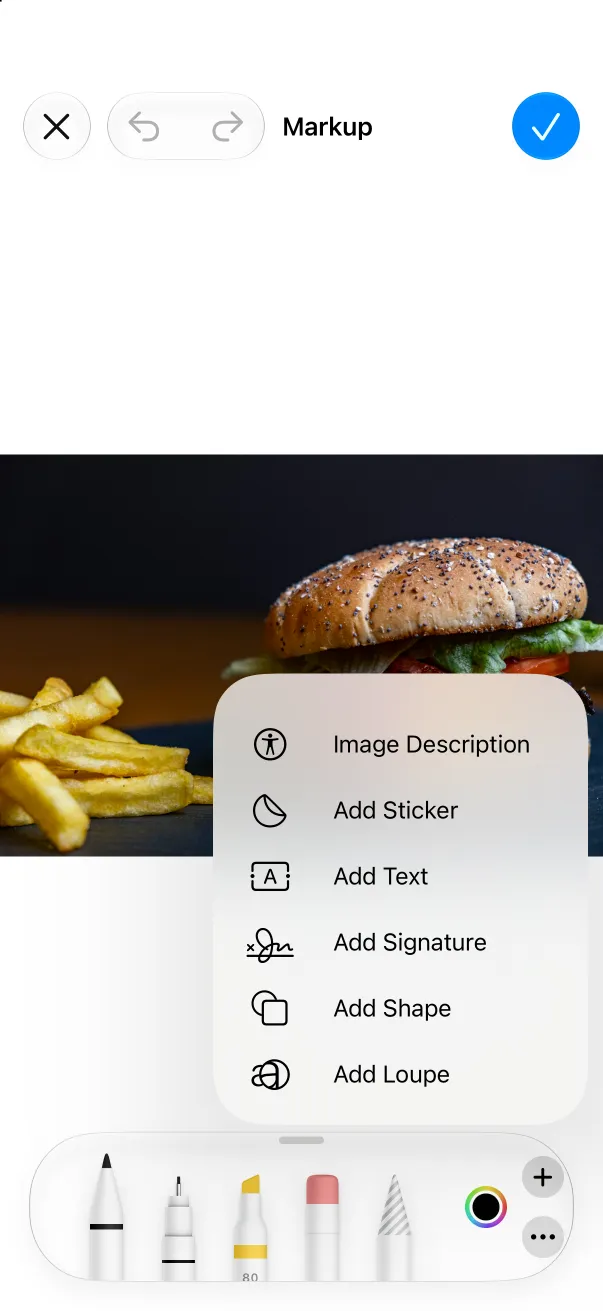
Tap the plus button, then Add Text
The drawing tools appear along the bottom. Tap the plus button at their right end and choose Add Text. A box that says “Text” appears on the photo.
04
Double-tap the box and type
Double-tap the box to edit it, delete the placeholder and type your words. Tap anywhere outside the box when you’re done typing.
05
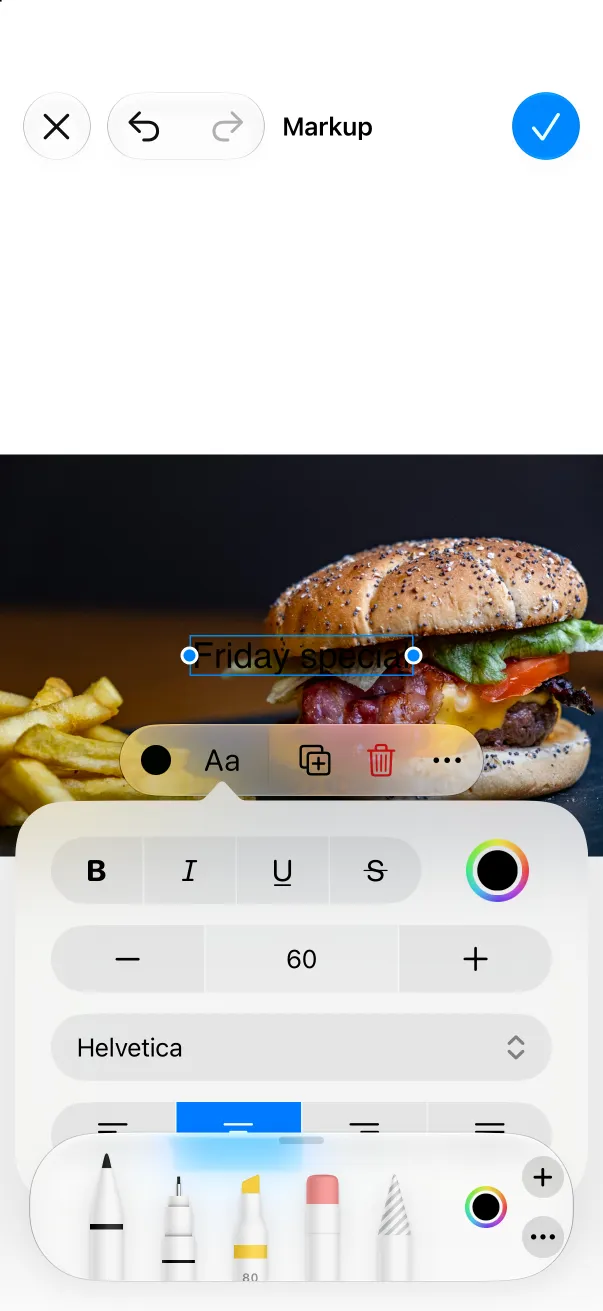
Change the font, size and alignment
Tap the box once to select it and a small toolbar appears. Aa opens bold, italic and underline, a size control, the font menu (Choose Font… lists every font on the phone) and four alignment buttons.
06
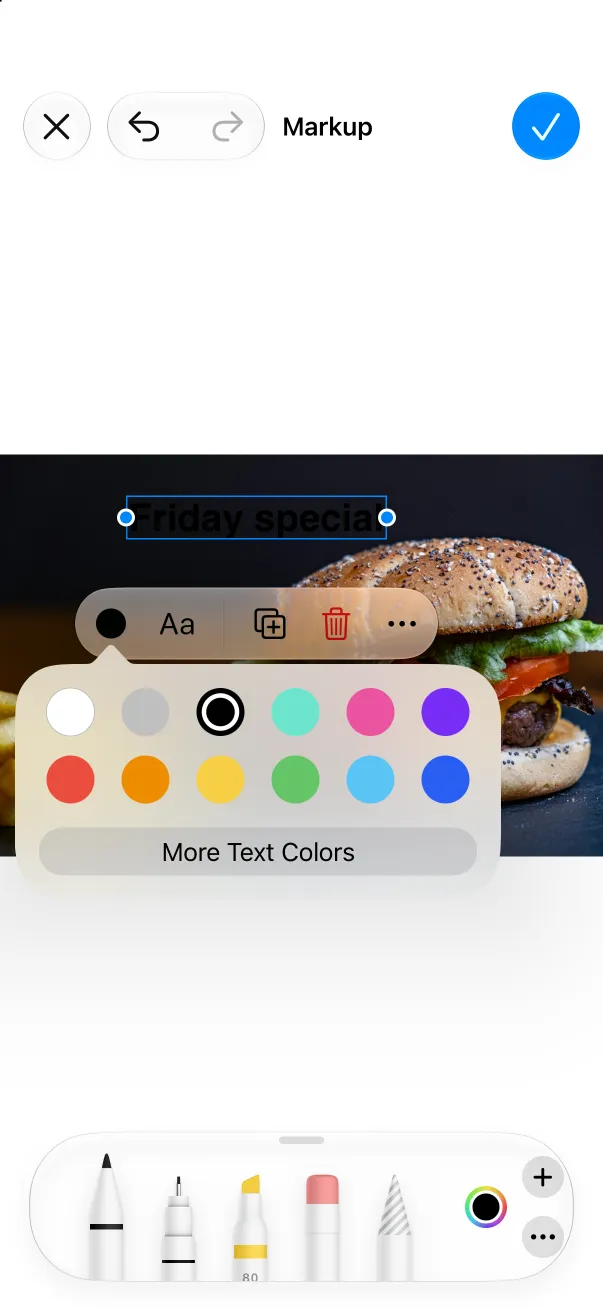
Pick a color that reads on your photo
The circle at the left of the same toolbar opens twelve colors, and More Text Colors opens the full picker. Black text on a dark photo all but disappears, so pick a color that stands apart from what sits behind it.
07
Drag the text into place
Press on the selected box and drag it where you want it. The blue dots on its sides change its width.
08
Tap Done, then Done again
The checkmark at the top right closes Markup, and the second one saves the photo with the text on it.

What Markup does well, and where it stops
For a quick label, a date, a price or an arrow, Markup is all you need, and it costs nothing. It is a text box, though, not a designer:
- You write every word. Markup won’t suggest a caption.
- Every choice is manual: font, size, color and position, box by box.
- It doesn’t check contrast. Our first try, black text on the dark side of the burger photo, was close to unreadable until we switched to white.
- There are no layouts. To make a photo look like a poster or a magazine cover, you build the whole design yourself.
When you want the words written for you
Vibatorial is our iPhone app for the other job: it reads the photo, writes the words about what is in it, and sets the type for you, in whichever of its 15 voices you pick. Here is the same burger photo both ways.


BACON ON TOP OF THE CHEESE
THE ORDER OF OPERATIONS WAS CORRECT.
Bacon over cheese, not under it. Someone in that kitchen has their priorities straight.
Every line can be edited, and switching voices writes new ones. The first 3 covers are free with no account. More examples, and how the cover lines work, are on the magazine cover maker page.
3 free covers · No account · Nothing to cancel
Questions
Can I add text to a photo on iPhone without downloading an app?
Yes. The Markup tool in the Photos app adds text, in any font on the phone, at any size and color, and it’s free. The steps above are all it takes.
Does adding text change my original photo?
Photos keeps the original. To take the text off later, open the photo, tap Edit, then tap Revert at the top right. Revert removes every edit on that photo, including crops and filters.
Why can’t I find the Markup button?
On iOS 26 and iOS 27 it isn’t on the editor’s toolbar. Tap Edit, then the More button (three dots), and Markup is in that menu. Its icon is a pen tip in a circle.
Does this work on every iPhone?
On any iPhone running iOS 26 or iOS 27 the steps are the same, whatever the model. Check your version in Settings > General > About.
Can I change the font in Markup?
Yes. Select the text box, tap Aa, then tap the font name and Choose Font…. Bold, italic and underline sit at the top of the same panel.
Screenshots taken in the Photos app on the iOS 27.0 simulator (iPhone 18 Pro) on October 20, 2026; the menu path was re-checked on iOS 26.4 the same day. Apple’s own Markup guide is at support.apple.com. The Vibatorial cover was captured from the app on August 28, 2026, unedited. Photo from Pexels by Marianne Rixhon.